Building VM Images with Podman
25.11.2026 · dadevel
Are you annoyed by Packer and Ansible? In this blog post I will show how easily a Dockerfile can be turned into a bootable disk image. Most of the overhead of Packer and Ansible is suddenly gone. And you get layer caching for free on top.
Prerequisites
Throughout this post I use Arch Linux, both as the build host and inside the image, but the idea itself is distro-agnostic. To install the required packages on Arch, run:
sudo pacman -S --needed podman gptfdisk dosfstools
The Dockerfile
First of all, the Dockerfile is completely ordinary.
The only unusual requirement is that a bootloader, kernel and initramfs end up in /boot.
FROM docker.io/library/archlinux:latest
ARG ROOT_PASSWORD

# install kernel and initramfs
RUN pacman -Syu --noconfirm core/base core/linux core/mkinitcpio

# set timezone to avoid systemd-firstboot
RUN ln -sf /usr/share/zoneinfo/UTC /etc/localtime

# set root password and enable console login
RUN chpasswd -e <<< "root:$ROOT_PASSWORD" && systemctl enable getty@tty1.service

# set up bootloader
RUN mkdir -p /boot/efi/boot/ && cp /usr/lib/systemd/boot/efi/systemd-bootx64.efi /boot/efi/boot/bootx64.efi
COPY <<EOF /boot/loader/loader.conf
console-mode auto
default system
editor no
timeout 0
EOF
COPY <<EOF /boot/loader/entries/system.conf
title System
linux /vmlinuz-linux
initrd /initramfs-linux.img
options quiet
EOF
Building the container
You can build the container image pretty much like you always do.
Only --squash-all is important, because the next step expects an image with a single layer.
root_password=$(openssl passwd -6)
podman build --squash-all --tag localhost/my-image --build-arg ROOT_PASSWORD="${root_password}" .
If you want to modify /etc/resolv.conf or /etc/hosts in the Dockerfile, you need to pass the options --network host --dns none --no-hosts to podman build.
Turning the container into a disk image
Now the magic happens. The following commands convert the container image into a raw disk image. If you ever installed Arch from scratch, most of the steps will be familiar to you.
# create empty disk
rm -f ./image.raw
truncate -s 8G ./image.raw

# create partitions
sgdisk --new=0:0:+512M --typecode=0:ef00 --change-name=0:efi ./image.raw
sgdisk --new=0:0:0 --typecode=0:8304 --change-name=0:root ./image.raw
sgdisk --sort --print ./image.raw

# attach disk to loop device
loop=$(sudo losetup --find --show --partscan ./image.raw)

# create filesystems
sudo mkfs.fat -F 32 -n EFI ${loop}p1
sudo mkfs.ext4 -q -L ROOT ${loop}p2

# mount filesystems
mkdir ./mnt
sudo mount ${loop}p2 ./mnt
sudo mkdir ./mnt/boot
sudo mount ${loop}p1 ./mnt/boot

# unpack container over mountpoint
mkdir ./tmp
podman image save localhost/my-image | tar -x -f - -C ./tmp
sudo tar -x -f ./tmp/????????????????????????????????????????????????????????????????.tar -C ./mnt --preserve-permissions --same-owner --numeric-owner --xattrs --xattrs-include='*'

# cleanup
rm -rf ./tmp
sudo umount -R ./mnt
sudo losetup -d ${loop}
rmdir ./mnt
Why does this even boot?
You might have noticed that the kernel command line is basically empty and that we never touched /etc/fstab.
Thanks to the Discoverable Partitions Specification, neither is needed: Systemd finds the root partition by its type code 8304 and mounts the EFI partition to /boot automatically.
Furthermore, the bootloader is placed at \EFI\BOOT\BOOTX64.EFI, the path the UEFI firmware automatically falls back to, so no boot entry has to be registered.
Testing the disk image
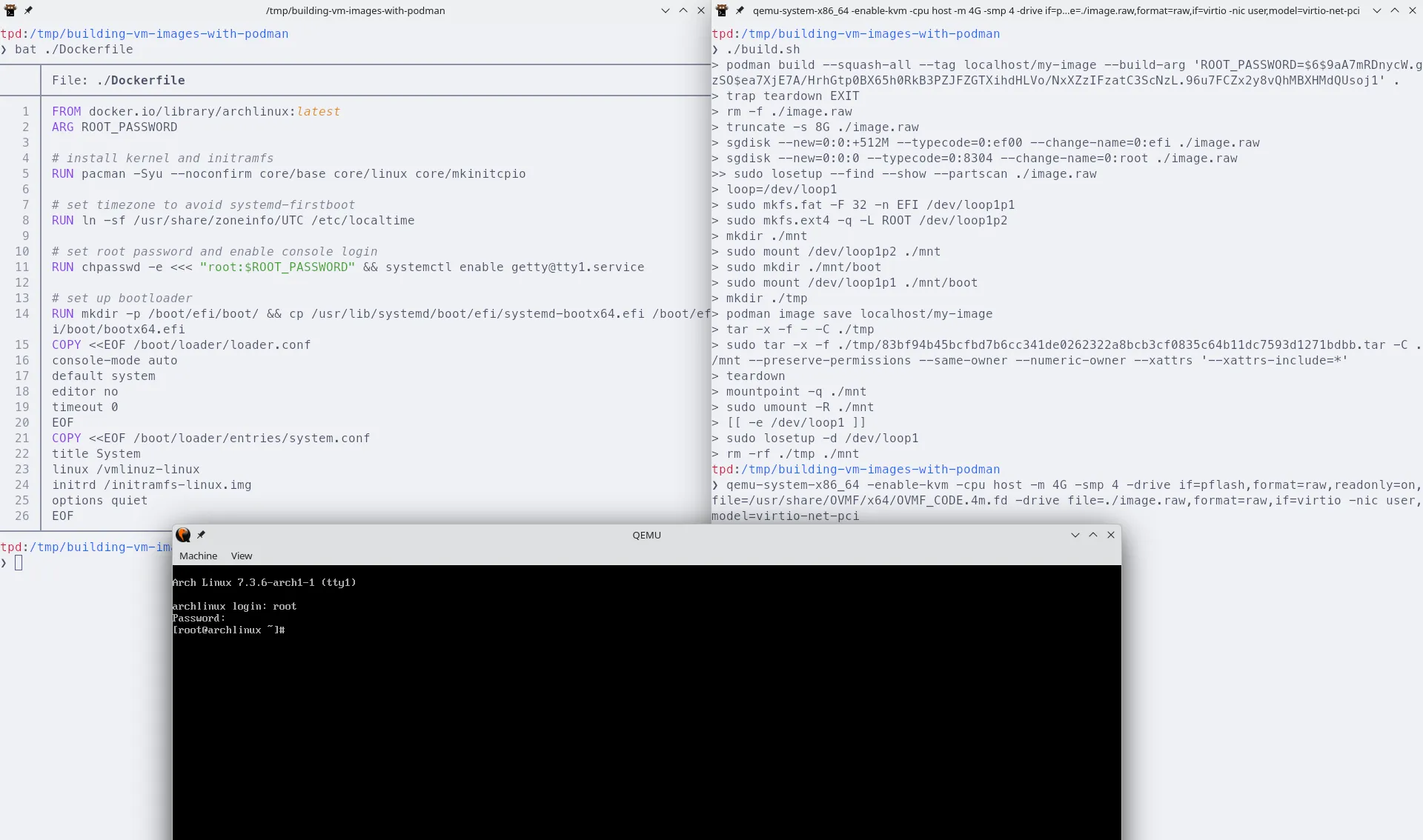
Finally, you can boot the disk image in a VM. The OVMF path below is where Arch stores the firmware; other distros use different paths.
sudo pacman -S --needed qemu-system-x86 edk2-ovmf
qemu-system-x86_64 -enable-kvm -cpu host -m 4G -smp 4 -drive if=pflash,format=raw,readonly=on,file=/usr/share/OVMF/x64/OVMF_CODE.4m.fd -drive file=./image.raw,format=raw,if=virtio -nic user,model=virtio-net-pci
Conclusion
You can find the final script on GitHub.
With a few dozen shell commands you get a ready-to-use disk image.
No Packer template and no Ansible playbook needed.
A VM is never even booted during the build process.
However, this is just a demonstration of the core idea.
If you need something more complete, take a look at bootc and bootc-image-builder.
They also turn container images into bootable disks and add atomic updates on top, but they require base images built specifically for bootc, while the simple approach above works with any ordinary container image.